
What the official pages confirm
Steam lists the game as an Early Access Windows PC release with a Windows 10 requirement and a GTX 1060 6 GB or comparable graphics baseline. That is useful context, but it is not a Steam Deck performance guarantee. A compatibility layer adds another variable, and the rhythm-action format makes uneven frame delivery more noticeable than a simple average FPS number.
The official website is the better place to watch for game news. The current page highlights the Midsummer Update, so a setting that feels stable this week may need another test after a patch. Do not turn a community report, a video title, or a copied launch option into an official support claim.
For mods, keep the boundary clear. The existing installation guide explains archive paths, case-sensitive folders, Proton prefixes and one-package testing. This page adds the SteamOS performance loop; it does not replace the source author's instructions for a character, map, graphics or song package.
- Treat Steam Deck as a test environment, not a guaranteed supported preset.
- Prefer stable frame time and readable timing over a higher but inconsistent FPS counter.
- Keep a clean launch and a dated backup before changing mods or compatibility settings.
- Recheck after a game update, a Proton change, a graphics driver change or a mod-loader update.
Best Steam Deck settings for Dead as Disco: a safe baseline
The table is a starting sequence, not a claim that Dead as Disco has an official Steam Deck profile. Apply the least disruptive change first, play the same short section, and write down whether the image, controls, audio timing and fan behavior improved. If a change makes timing less predictable, return to the previous value instead of stacking more tweaks.
The phrase dead as disco best settings for steamdeck describes a starting test, not an official profile. Record the old value, change one option, repeat the same busy scene and keep the setting only when input, audio timing and frame delivery remain predictable.
Start with the game's own graphics menu and SteamOS defaults. Avoid installing a performance plugin, forcing a custom launch option and copying mods at the same time: when the result changes, you will not know which layer caused it.
| Area | Safe starting point | What to watch | When to change it |
|---|---|---|---|
| Resolution | Use the Deck panel's native 1280×800 target when the game exposes it; otherwise keep the game's stable default | Text clarity, scaling artifacts and sudden frame-time spikes | Lower the render load only after confirming the game is GPU-bound |
| Frame target | Try a conservative 40 FPS / 40 Hz-style target if it remains even; otherwise use a stable 30 FPS target | Beat timing, camera judder and whether the cap is actually sustained | Do not raise the target until the same test stays consistent |
| Graphics | Begin at low-to-medium effects with heavy post-processing reduced | Reflections, particles, shadows and crowded stages | Raise one option at a time and retest the same scene |
| Power and thermals | Leave SteamOS power controls at their normal behavior first | Fan noise, heat, battery drain and throttling | Only experiment after the game is stable; record the old value |
| Proton | Use the currently working default Proton path before trying a different branch | Launch success, input, audio and mod-loader behavior | Change Proton only when a specific update or source note gives you a reason |
Prioritize frame pacing over a headline FPS number
A rhythm game can feel worse at a higher average FPS if frame delivery is uneven. Use one repeatable test: launch without mods, enter the same stage, watch a busy section, and note whether inputs, audio cues, camera movement and effects remain synchronized. The purpose is comparison, not a synthetic benchmark.
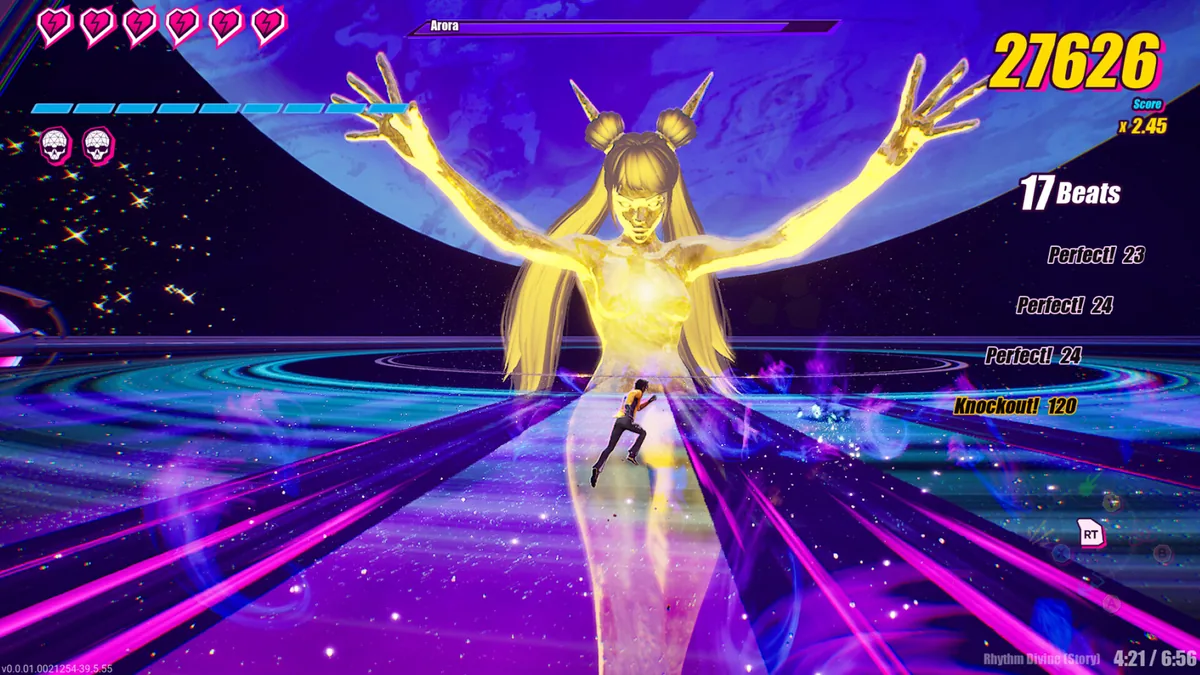
The official gameplay image below is a visual reminder of the kind of busy scene that can expose a weak baseline. It is a real gameplay asset already kept in this site's source library, not a Steam Deck capture and not evidence of a tested preset.
- 1. Start cleanDisable community packages and use the same Proton setting that last launched successfully.
- 2. Repeat one sceneUse a short stage or menu path with visible effects. Do not compare a quiet menu to a crowded fight.
- 3. Change one variableAdjust the frame cap or one graphics option, then repeat the scene without changing anything else.
- 4. Keep the stable resultIf the input or audio feels less predictable, revert the change even when the counter is higher.
Mods on SteamOS: install only after the clean test
A mod can change the result even when the game itself launches. On Steam Deck, the installed Windows game directory may sit behind a Proton compatibility prefix, and Linux can expose filename-case mistakes that Windows hides. Use Steam's Browse Local Files action, identify the real game directory, and preserve the archive's supplied relative paths.
Do not use this page to guess a universal LogicMods, Paks or custom-song folder. The source listing and readme decide the destination. The full installation workflow covers the folder-first method, while the Mod Manager guide explains why a manager's selected executable and source version must be checked separately.
Desktop Mode is a practical first test because file inspection and rollback are easier there. Keep each archive outside the live game folder, take a dated backup, add one known-good package, and launch before adding another. If a package changes performance, remove that newest package before changing Proton or power settings.
- Keep ZIP or 7z archives outside the scanned game directory.
- Preserve capitalisation and every supplied folder level inside the Proton prefix.
- Test character, map, graphics and song packages as separate layers.
- Do not treat a source page, preview image or video as proof that a downloadable file is current.
What to retest after an update
Because the game is Early Access and the official site is still publishing updates, keep a small change log. Record the date, game news or patch signal, Proton branch, SteamOS version if relevant, frame target, enabled packages and the scene used for comparison. That record is more useful than remembering that a setting once felt smooth.
Before a major test, use the site's save file guide to create a dated backup. If the update leaves the game unable to launch or a mod disappears, follow the clean isolation sequence in troubleshooting before downloading replacement DLLs or random compatibility files.
- 1. Preserve the known-good stateBack up saves and note the working Proton, frame target and enabled mod list.
- 2. Launch without community filesConfirm that the updated game reaches the menu and a normal stage before restoring anything.
- 3. Check the same sceneCompare timing, input, audio, visual effects, battery drain and temperature behavior.
- 4. Restore one layer at a timeEnable the loader or manager first, then one known-good package. Stop at the first changed result.
| Symptom | First check | Avoid |
|---|---|---|
| Game launches but timing feels uneven | Return to the last stable frame target and reduce one heavy effect | Chasing a higher FPS number with several tweaks at once |
| Game stops launching after a mod | Move the newest package out and test a clean launch | Replacing files from an unrelated mirror |
| Mod is missing on Steam Deck | Check the Proton prefix, case and source instructions | Creating a guessed universal folder |
| Save or settings appear to reset | Confirm the active path and Steam Cloud state | Restoring a save before keeping the current backup |
Limits of this settings guide
This is a cautious starting guide, not a certification, benchmark database or promise that every Steam Deck model, SteamOS release, Proton version or community package will behave the same way. The official sources publish the game and its PC requirements; they do not publish a universal Steam Deck preset. Community reports can help you choose a test, but they are not a substitute for checking the current source page and your own clean launch.
If you need a direct download, use the creator's current source page rather than a copied archive. This site does not re-host game files or mod packages, and it does not turn a details page into a fake direct-download button.
- Keep settings reversible and change one variable at a time.
- Do not claim a mod is Steam Deck-compatible because another mod works.
- Use the official game and creator pages as the authority for new release notes.
- When a problem is clearly a file conflict, switch to the installation or troubleshooting guide instead of adding more performance tweaks.
Dead as Disco Steam Deck FAQ
Can Dead as Disco run on Steam Deck?
Steam lists Dead as Disco as an Early Access Windows PC game and exposes Steam Deck review filtering, but it does not publish a fixed Steam Deck preset or guarantee for every update. Test a clean launch, keep the default Proton path that works for you, and treat community mods as a separate compatibility question.
What are the best Steam Deck settings for Dead as Disco?
Use a conservative frame target, reduce heavy effects first, and prioritize consistent frame pacing over a higher counter. A 40 FPS-style target can be a useful experiment if it stays even; otherwise keep a stable 30 FPS target and compare the same busy scene after every change.
Should I use a different Proton version?
Only when the current working path stops launching or a current source note gives you a reason. Record the old Proton choice, test the game without mods, and change one compatibility layer at a time so you can roll back.
Can I install Dead as Disco mods on Steam Deck?
Some packages may work, but the loader, Proton prefix, filename case and game build matter. Use Desktop Mode for the first file check, follow the creator's relative paths, test one package, and read the full installation guide before adding more.
Why does the game feel worse at a higher FPS?
An average FPS number can hide uneven frame delivery. Repeat the same stage and compare input, audio cues, camera movement and effects. If timing is less predictable, revert to the previous cap or graphics setting even if the counter is higher.
What should I do after a Dead as Disco update?
Back up your save, launch without community files, repeat the same test scene, record the Proton and frame settings, and restore one mod layer at a time. If the failure follows a file, use the troubleshooting guide instead of downloading an unverified replacement.
Are these the official best Steam Deck settings for Dead as Disco?
No. They are a cautious test baseline because the official pages do not publish a fixed Steam Deck preset. Start with a stable frame target, reduced heavy effects and the Proton path that already works, then compare the same scene after each change.
Source and safety note
Checked August 12, 2026. Steam still presents Dead as Disco as an Early Access PC game and publishes Windows requirements, while the official site remains the place to watch for game news. Neither source publishes a fixed Steam Deck preset or a stable public semantic game version, so every baseline below is reversible and must be retested after updates.