

What the Dead as Disco local co-op mod adds
The Dead as Disco local co-op mod is a focused feature extension for two players on the same computer. The Nexus description calls it Local Co-op Multiplayer Enabler and lists a Player 2 viewport, independent HUD, wardrobe access, a customization menu, and three camera arrangements. That scope matters: you are installing a community script and loader bundle, not enabling a hidden Steam multiplayer switch.
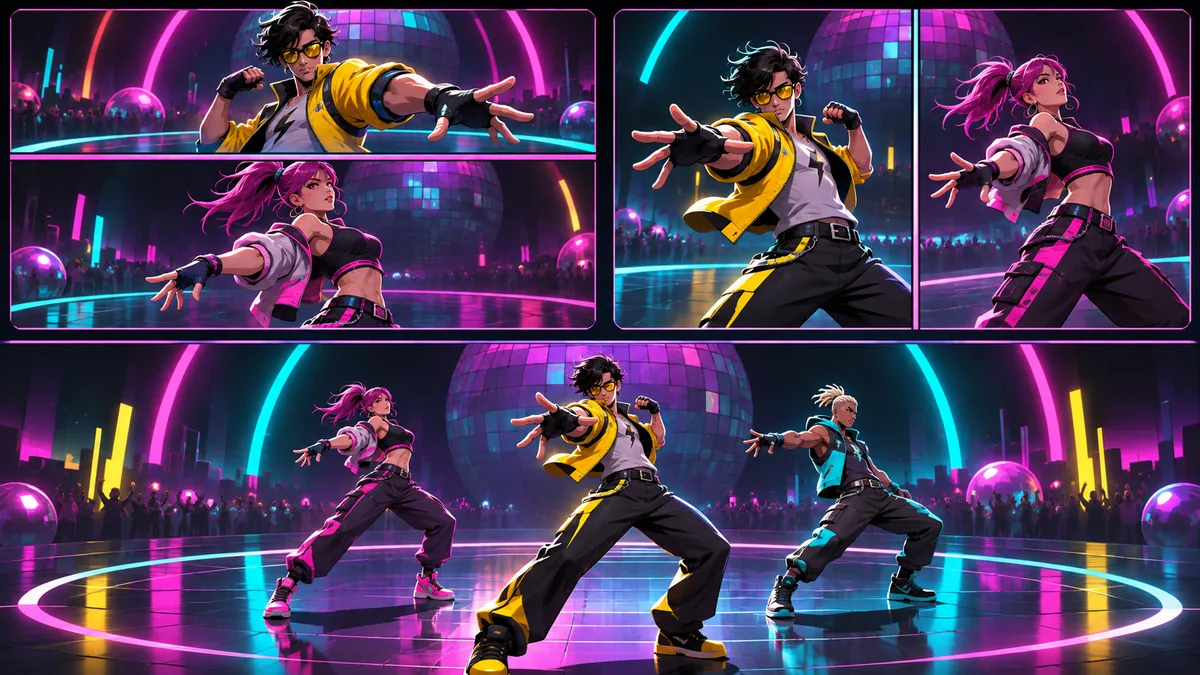
The source describes horizontal split-screen as the default, vertical split-screen for wider displays, and a shared single-screen arena with an automatic tether. Cinematics can collapse the split layout and restore it afterward. Player 2 can open a separate studio menu for outfits, dances, boss abilities, upgrades, and character choices while Player 1 keeps the session moving. Treat every feature as source-specific and build-dependent because Dead as Disco remains in active development.
The public co-op directory page also separates local co-op and split-screen from online, campaign, and LAN modes. Use this page when you need the practical local setup. Do not promise a remote friend that the same files create online matchmaking, cloud co-op, or a second Steam account session.
- Two local players on one PC, with Player 2 joining or regrouping in an arena.
- Horizontal, vertical, and shared-screen camera modes, plus an auto-leash option.
- Player 2 customization and loadout controls inside the mod's studio menu.
- A source-controlled mod with its own files, shortcuts, and rollback path; it is not an official Steam feature.

Check the source, version and game folder first
Open the original Nexus description and the author's GitHub repository before touching the game folder. The Nexus page currently shows the listing as Version 2 and credits HyliaChosenOne. The README heading identifies the project as v2.2 and names Dead_as_Disco_Local_Coop_Mod_v2.2.zip. Those signals are close but not identical, so record the exact source page and file name you used instead of inventing a newer version label.
The fetched Nexus Files view exposed the version field but not a stable file row, and the public Releases URL could not be verified by the research fetch. For that reason this guide links to the source pages and does not publish a guessed /dl/ URL. Download only from the page where the author controls the file and instructions. Keep the untouched archive outside the game folder so you can compare it later.
Use Steam's Browse Local Files command for the edition you actually launch. The target is the root containing Pagoda.exe and the Pagoda directory. Do not choose a remembered Demo folder, a desktop shortcut, or a copied backup. If Steam opens a different path than expected, stop and resolve that mismatch before installing.
| Check | Evidence to record | Stop condition |
|---|---|---|
| Source identity | Nexus listing URL, author, README URL | A mirror or renamed archive is the only source |
| Version signal | Nexus Version 2; README v2.2 and archive name | A page claims latest but exposes no matching file |
| Game target | Steam path containing Pagoda.exe | The path is a Demo, backup, or unknown copy |
| Rollback | Dated copy of the active mod and save context | You cannot restore the clean folder |
| Scope | Local two-player only | Someone expects online or LAN multiplayer |
Install the mod with a rollback copy
A reversible install is more useful than a fast copy. Close Dead as Disco and Steam's game process, then make a dated copy of any existing Pagoda\Binaries\Win64\ue4ss folder and your active mod manifest. Keep a separate save backup as well; a co-op test should never be your only copy of player progress. The save backup guide covers that separate workflow.
The public source describes an extracted Pagoda folder that belongs in the game root. Preserve the archive's relative structure. Do not flatten files from Pagoda, create a second nested Pagoda\Pagoda, or copy only a DLL because a screenshot makes the package look simple. If the README says the package includes its loader files, let the included tree show where each file belongs.
After copying, open Pagoda\Binaries\Win64\ue4ss\Mods\mods.txt. The README uses LocalCoopMod : 1 as the enabled entry. Preserve other entries and keep a before-and-after copy of the file. Launch the clean game once before the test, then launch with the mod and add only one other known-good package if you need a compatibility check.
- 1. Close and back upExit the game, copy the active ue4ss and mod folders to a dated location, and keep your save backup separate.
- 2. Open the Steam rootUse Browse Local Files and confirm that the selected folder contains
Pagoda.exe. - 3. Extract without flatteningExtract the author package outside the game first, inspect the Pagoda tree, and copy that tree into the root.
- 4. Enable the entryConfirm
LocalCoopMod : 1in the activemods.txtwhile retaining the original file. - 5. Test one arenaLaunch, enter a stage or the Dive Bar, connect one second controller, and record the first result before adding anything else.
- Keep the downloaded archive and source URL next to the dated backup.
- Do not overwrite an unknown loader with a DLL from a mirror.
- If a file already exists, compare the source path and back up the old copy before replacing it.
- Treat a successful menu launch as only a first check; verify Player 2 in an arena.
Connect Player 2 and choose a screen mode
The source's main success path is simple: launch with the mod enabled, enter a stage or arena, connect the second input, and press the drop-in shortcut. On a gamepad, Player 2 uses L3 + R3, meaning both stick clicks. On a keyboard, the Nexus description lists F6 or Ctrl + Y for spawn or regroup. If Player 2 is already active, the same action can regroup them rather than creating a second copy.
Use the screen mode that matches the room and the display. Horizontal split keeps each player in a top or bottom viewport. Vertical split gives each player a left or right view and can suit an ultrawide monitor. Shared Screen keeps one camera over the arena and can use the auto-tether to pull a distant Player 2 back into view. Switch modes with F9 or Ctrl + P according to the source listing, then test a short fight before committing to a longer run.
Cinematics may temporarily return to a single full-screen view. That transition is part of the mod's documented behavior, not evidence that the split mode has failed. If the camera does not restore, disable other camera or UI changes first and return to the clean co-op backup.
| Goal | Shortcut | What to verify |
|---|---|---|
| Connect or regroup Player 2 | L3 + R3 or F6 | P2 appears once and responds to the intended device |
| Switch input setup | F5 | One keyboard plus one gamepad or two gamepads |
| Cycle screen mode | F9 or Ctrl + P | Horizontal, vertical, and shared views render correctly |
| Toggle auto-tether | F11 | Shared-screen separation returns P2 without trapping input |
| Remove Player 2 | F7 or Ctrl + U | The game returns to a clean single-player state |
Configure controllers, the studio menu and shortcuts
The mod documents two practical controller arrangements. In the first, Player 1 uses keyboard and mouse while Player 2 uses one gamepad. In the second, both players use gamepads. Press F5 to switch routing when the wrong device controls Player 2. Make the routing choice before a long session, because a duplicate or hidden input layer can look like a broken mod when the real issue is that Player 1 still owns both devices.
Player 2's studio menu is a separate customization surface. The README describes tabs for outfits, dances, boss skills, upgrades, and character selection, with controller navigation and a 360-degree preview. Nexus also lists Select or View to open the menu, LB and RB to cycle tabs, the D-pad or left stick to navigate, and A or Cross to equip or toggle. Keep Player 1's controls untouched while testing the menu so you can tell a focus problem from a general game freeze.
Keyboard users can use the documented F2 and F3 menu shortcuts, F4 to swap the Player 2 model, F8 to teleport, F9 for the screen cycle, and F11 for the shared-screen tether. Exact alternate combinations can vary between the Nexus description and the README, so treat the live source and the in-game response as the final check. Record which shortcut set works for your source version instead of mixing lists from different releases.
- Use one clear device plan: keyboard plus one pad, or two pads.
- Press F5 when the wrong pad owns Player 2; restart only after testing the documented routing switch.
- Open the P2 menu with Select/View and close it before testing movement or pause focus.
- Keep a short note of the source version and the shortcuts that worked in your build.
Fix input, camera and startup problems
If the game crashes before the menu, return to the dated clean copy first. If it reaches the menu but Player 2 never appears, confirm that the active root contains the extracted Pagoda tree and that mods.txt still enables LocalCoopMod. If the game reaches an arena but the shortcut does nothing, test F5 and disconnect any extra controller that Windows or Steam has assigned as Player 1.
Steam Input can add another translation layer on top of a gamepad-aware mod. If prompts, duplicate movement, or the wrong device persist, close the game and test Steam's per-game controller setting with the mod's native path. Change one setting at a time and write down the result. Do not replace the mod's files with a community DLL just because a forum comment suggests it.
For a camera issue, test horizontal mode first, then vertical, then shared screen. Disable unrelated camera, HUD, or character mods while you compare. For a soft-lock, remove Player 2 with F7 or use the clean backup, then add the co-op files alone. The troubleshooting guide gives the broader clean-launch order when the co-op test exposes a conflict with another package.
| Symptom | First check | Safe next move |
|---|---|---|
| Crash before menu | Correct root and clean backup | Restore the clean folder and verify official files |
| P2 does not spawn | F5 routing, F6 shortcut, mods.txt | Test one controller and one arena |
| Wrong prompts or duplicate input | Extra pad and Steam Input layer | Disconnect the extra device and retest native routing |
| Camera or UI overlap | Screen mode and other UI mods | Try horizontal mode alone, then disable the newest conflict |
| P2 is stuck or duplicated | F7 removal and clean launch | Restore backup before changing more files |
Remove the mod and decide whether to keep it
The source describes a temporary disable switch and a full uninstall path. To disable without deleting the package, set LocalCoopMod : 0 in the active mods.txt, launch once, and verify the game returns to its single-player behavior. To uninstall, remove the LocalCoopMod folder under Pagoda\Binaries\Win64\ue4ss\Mods and any source-documented loader files that were added by the package. Compare against your dated before-copy instead of deleting unrelated mods.
Keep the mod when both players can connect reliably, your chosen screen mode stays readable, and you can return to a clean launch without guessing. Remove or pause it when the source version is unclear, the mod conflicts with a loader or camera package, or you need a stable single-player baseline for an update. Early Access changes can invalidate a path or shortcut even when the archive itself has not changed.
This page intentionally does not promise Steam Deck, Linux, online, or LAN compatibility for the local co-op mod. Those environments can require different prefixes, case handling, input routing, or loader support. Check the source author's current notes and run a short clean test before making a long co-op save your only working setup.
- Disable with
LocalCoopMod : 0when you need a reversible test. - Uninstall only the documented LocalCoopMod files and compare with your backup.
- Keep the source archive and exact version note for a future re-test.
- Do not treat local co-op as proof of online, LAN, Linux, or Steam Deck support.
Dead as Disco local co-op mod FAQ
Does the Dead as Disco local co-op mod add online multiplayer?
No. The fetched Nexus and GitHub descriptions document two-player local play on one PC with split-screen or a shared camera. They do not verify online matchmaking, campaign co-op, or LAN play.
What version is the Dead as Disco local co-op mod?
The Nexus listing shows Version 2, while the author's GitHub README identifies v2.2 and the archive name Dead_as_Disco_Local_Coop_Mod_v2.2.zip. Record the source page and file you actually use instead of calling an unverified release latest.
Where do I install the local co-op mod?
Extract the documented Pagoda structure into the Steam game root containing Pagoda.exe. Preserve the relative folders and confirm the active ue4ss Mods folder before editing mods.txt.
How do I connect Player 2?
In an arena, press L3 + R3 on Player 2's controller or use F6, with Ctrl + Y listed as an alternate in the Nexus description. Press F5 if the wrong device is routed to Player 2.
Which screen modes are supported?
The source lists horizontal split-screen, vertical split-screen, and a shared single-screen arena mode. F9 or Ctrl + P cycles modes in the documented keyboard shortcuts.
Why does Player 2 control the wrong character?
Test the input routing with F5, disconnect an extra controller, and restart from a clean one-mod test if needed. Steam Input or another device assigned to Player 1 can make the mod look unresponsive.
How do I disable the mod without deleting it?
Set LocalCoopMod : 0 in the active ue4ss mods.txt, launch once, and confirm single-player behavior. Keep the original file so you can restore the enabled entry later.
Does this guide provide a direct download?
No. The source pages were verified, but a stable anonymous file URL was not. Use the original Nexus or author GitHub page to review the current file and permissions; this site does not re-host the archive.
Source and safety note
Checked November 15, 2026 against the Nexus Mods description for Local Co-op Multiplayer Enabler and the author's public GitHub README. Nexus shows a version field of 2 while the README identifies v2.2 and the archive name; the fetched Files and Releases views did not expose a stable anonymous file URL. This site does not re-host the archive, call an unverified link a direct download, or claim online co-op.